
OpenCDA Overview and Launch
OpenCDA is the scenario orchestration layer of CAVISE. It connects automated
driving logic to the CARLA world and can optionally synchronize the same
experiment with SUMO and Artery. A scenario describes the world, vehicles,
roadside units, sensors, driving behavior, communication services, metrics,
and attacks in YAML; opencda.py loads that configuration and runs the
simulation loop.
This page is the quickest route from a prepared CAVISE workspace to a running OpenCDA scenario. For initial installation, container setup, and platform- specific instructions, see Install And Launch.
What OpenCDA Provides
Area |
Available functionality |
|---|---|
Scenario orchestration |
Deterministic CARLA worlds with configurable maps, weather, simulation steps, vehicles, RSUs, destinations, background traffic, and random seeds. |
Automated driving |
Localization, camera and LiDAR perception, map management, safety monitoring, route and trajectory planning, PID control, CARLA autopilot, and platooning. |
Co-simulation |
Bidirectional CARLA–SUMO synchronization for traffic and CAPI-based communication with Artery network simulations. |
Cooperative applications |
Vehicle and RSU behavior services, including state publication, movement requests and control, and AIM client/server workflows. |
Cooperative perception |
OpenCOOD-based multi-agent perception with visualization, prediction export, and configurable evaluation metrics. |
Security experiments |
Declarative attacks against behavior services and AdvCP attacks against cooperative perception pipelines. |
Evaluation and data collection |
CARLA recording, sensor data dumping, structured logs, and metrics for localization, driving behavior, platooning, and cooperative perception. |
Scenario Demonstration
Cooperative Perception Demonstration
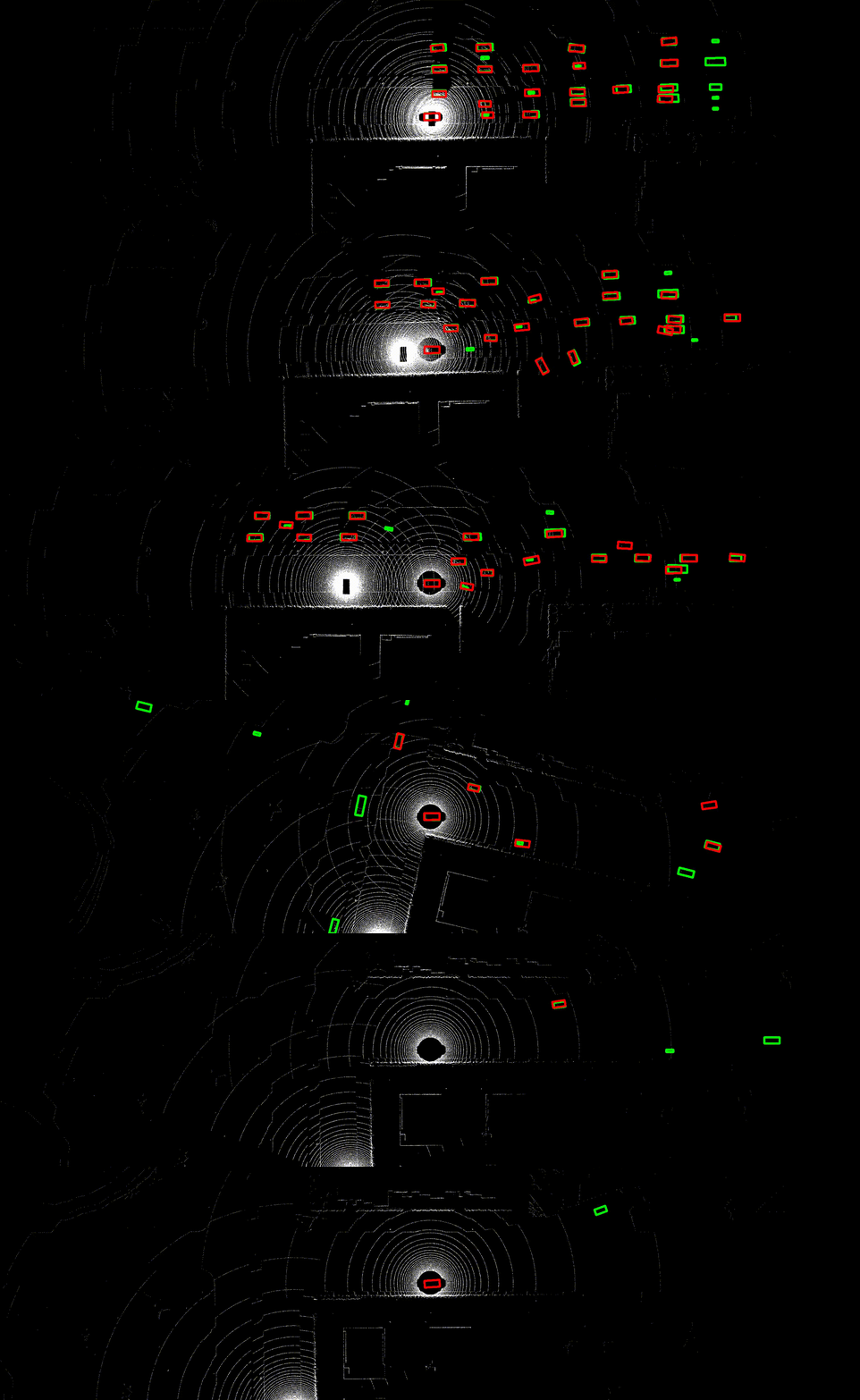
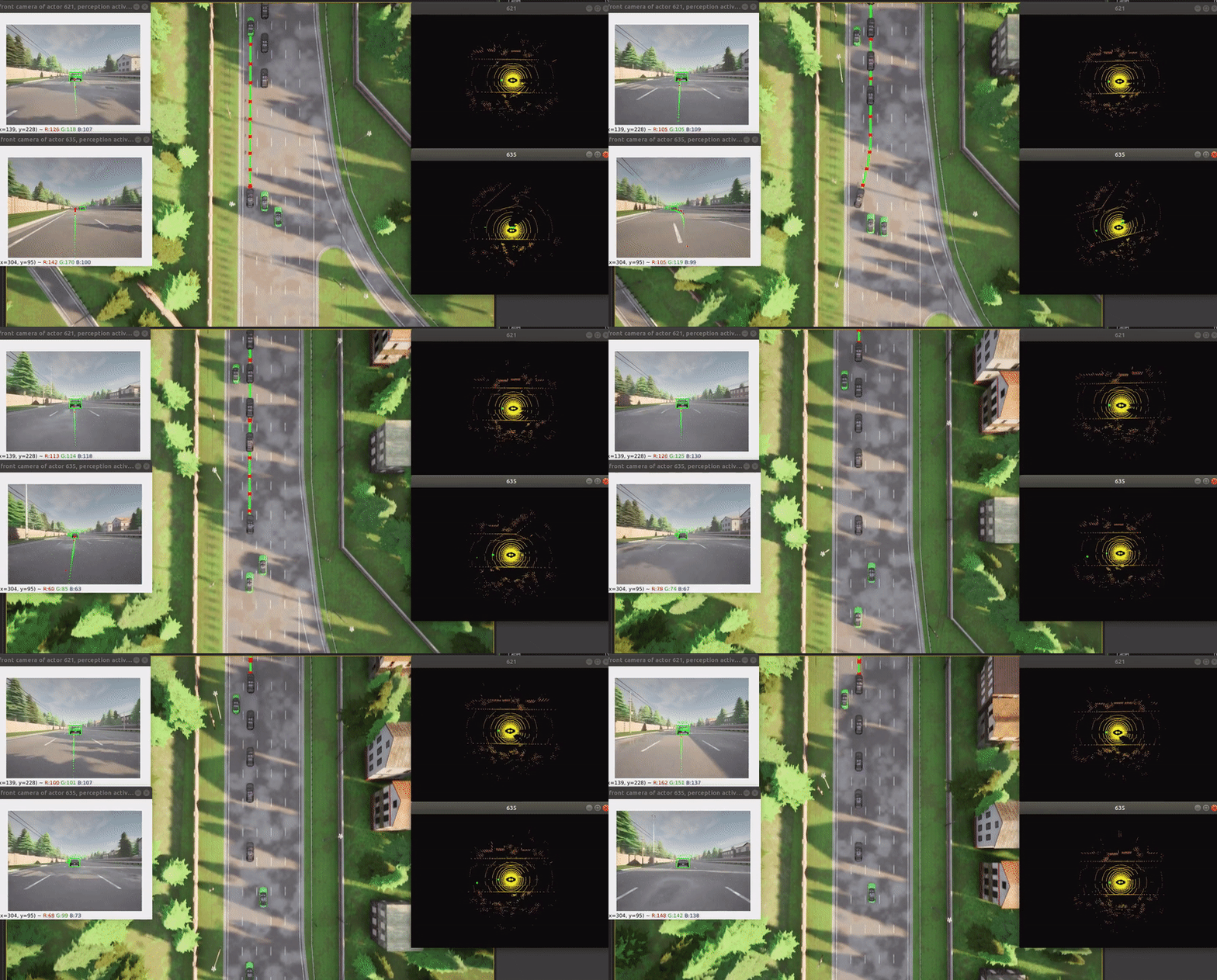
The v2xp_datadump_town06_carla scenario demonstrates cooperative
perception with a connected vehicle and roadside infrastructure. The first
view shows the fused detections in the CARLA scene; the second shows the same
run from the bird’s-eye-view visualizer.
Start the Runtime
Run the following commands from the CAVISE repository root. Build the images after the initial setup or whenever a Dockerfile or dependency changes:
./run.sh build
./run.sh up
The containers stay available as development environments. CARLA must be running before OpenCDA connects to it. On Linux, start it in a separate terminal:
docker exec -it carla bash
./CarlaUE4.sh
For a headless CARLA process, use:
./CarlaUE4.sh -RenderOffScreen
On Windows, start CarlaUE4.exe on the host instead. OpenCDA must then be
launched with --carla-host host.docker.internal.
Run an OpenCDA Scenario
Open another terminal and enter the OpenCDA container. Its default working directory is the mounted OpenCDA repository:
docker exec -it opencda bash
Run a CARLA-only scenario by passing its YAML filename without the .yaml
extension:
python opencda.py -t rsu_check
The runner resolves this command to
opencda/scenario_testing/config_yaml/rsu_check.yaml and merges it over
default.yaml. Stop the scenario with Ctrl+C. To confirm all runtime
options available in the checked-out version, run:
python opencda.py -h
Common Launch Modes
CARLA and SUMO
Use --cosim (or -c) when the scenario has matching SUMO assets and a
sumo configuration block:
python opencda.py -t single_town06_cosim --cosim
Free spectator camera
Prevent OpenCDA from controlling the spectator transform:
python opencda.py -t rsu_check --free-spectator
CAPI communication with Artery
Start the matching Artery scenario first, then enable the communication manager in OpenCDA:
python opencda.py -t <scenario> --cosim --with-capi
The default Artery endpoint is artery:7777. It can be changed with
--artery-host. See Install And Launch for the Artery build and
launch commands.
Cooperative perception
Enable a compatible OpenCOOD model and provide its directory:
python opencda.py -t 2cars_2rsu_coperception \
--with-coperception \
--model-dir opencda/coperception_models/<model-directory>
Add --save-vis to save rendered predictions, --save-npy to export
prediction data, or --show-video-vis for live visualization when a display
is available.
Recording and bounded runs
Use --record to enable CARLA recording and sensor data dumping. --ticks
is useful for repeatable experiments and automated runs:
python opencda.py -t rsu_check --record --ticks 1000
Development Environment Setup
The OpenCDA repository uses pre-commit to keep formatting and basic checks
consistent before code reaches CI. Run the following commands from the OpenCDA
repository root to install and enable it once per clone. After that, the hooks
run automatically before each commit:
python3 -m pip install pre-commit
pre-commit install
Run all hooks manually:
pre-commit run --all-files
Useful day-to-day commands:
# Run only Ruff linting and automatic fixes
pre-commit run ruff-check --all-files
# Run only formatting
pre-commit run ruff-format --all-files
The current hook set includes:
ruff-checkwith automatic fixes enabledruff-formathadolintfor theDockerfilecommon safety and hygiene checks for YAML, JSON, TOML, merge conflicts, whitespace, symlinks, and requirements files
CI also runs additional checks such as pytest, mypy, deadcode, and
repository-wide pre-commit. Run the local hooks before opening a pull
request to catch the most common failures early.
Where to Go Next
Scenarios explains how to create the OpenCDA YAML and matching SUMO and Artery assets.
Attack Framework covers declarative attack execution and available attacks.
Behavior Services covers reusable vehicle and RSU application services.
Additional Scripts lists helper tools for maps, coordinates, visualization, and development workflows.